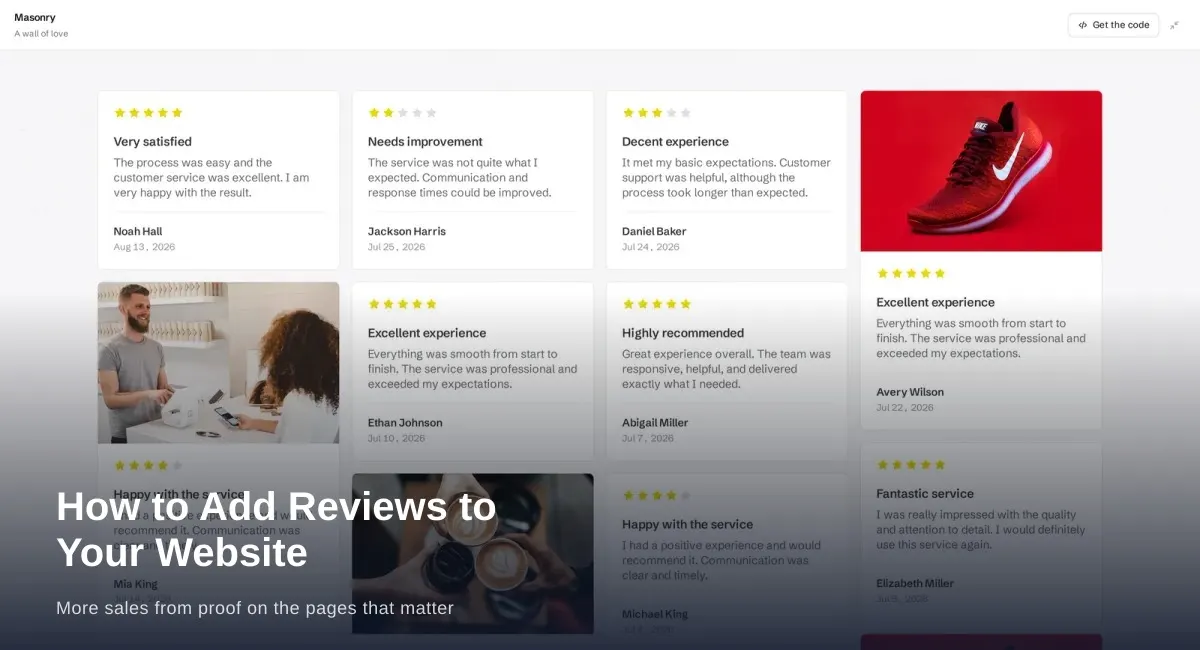
How to Add Reviews to Your Website for More Sales
Add reviews to your website where people decide: homepage, product pages, services, and pricing. Build trust and sales with real customer proof.
Put your Google reviews on your website with ReviewsJet. Connect your listing, publish the reviews you trust, and embed a widget in a few steps.

Your best Google reviews already exist. Most visitors never see them, because they are sitting on your Business Profile while the sale happens on your website.
You can put those reviews on your site with ReviewsJet. Connect your Google listing, choose which reviews to show, and embed a widget on WordPress, Wix, Webflow, Squarespace, Pixpa, or plain HTML. Widgets are unlimited on every plan. See pricing for published-review limits.
People decide fast. If your homepage or service page has no proof, many of them leave to check Google on their own, or they leave for good.
A review widget keeps that proof on the page. You also get more control than a Maps embed. You can use a slider, a grid, or a wall of reviews that matches your design.
In ReviewsJet, go to Collect, open Sources, and add Google. Paste your Maps or Business Profile link. You can choose to import only higher ratings, and you can skip ratings that have no written review so empty cards do not appear on your site.
The first fetch usually takes a minute or two. Leave the panel open until it finishes.
Importing is not the same as publishing. Open your reviews, pick the ones you are happy to show, and publish them. Widgets only display published reviews.
Open Display and try a few layouts. A slider is a good fit above the fold. A masonry wall works on a dedicated reviews page. Grid and list feel denser. A popup keeps reviews available without owning the whole layout.
Click Get the code and choose your platform.
On WordPress, install the ReviewsJet plugin, activate it, and paste the shortcode. The full WordPress walkthrough is here: How to Add Google Reviews to WordPress.
On Webflow, Wix, Squarespace, Pixpa, or a custom HTML site, paste the embed code from the same panel.
Open the page in a private window. Make sure the widget loads, the ratings look right, and only the reviews you published appear. If it is blank, double-check that those reviews are published and that you pasted the code for the right widget.
Free is enough for a small proof strip. If you need more published reviews, a second source, or richer SEO tools, Professional and Advanced are on pricing.
If you also want Yelp or other platforms in the same widget, read Display Google, Yelp, and more.
Usually one to two minutes after you connect. Keep the connect panel open until the first fetch finishes.
Yes. When you connect Google, you can limit which ratings import next. Reviews already in your account stay as they are until you change them.
Showing a widget on your site is separate from Google rich results. Rich results tools are available on Advanced in Display when you turn them on.
Connect your Google listing, publish a few strong reviews, and place the widget on the page that needs trust. You can start free and upgrade later on pricing.
Import the reviews your customers already left, choose the ones worth showing, and put them on your site. The free plan does not ask for a card.
Add reviews to your website where people decide: homepage, product pages, services, and pricing. Build trust and sales with real customer proof.

Add a homepage Quote widget that shows one customer review as page typography, with a fresh line on each visit.
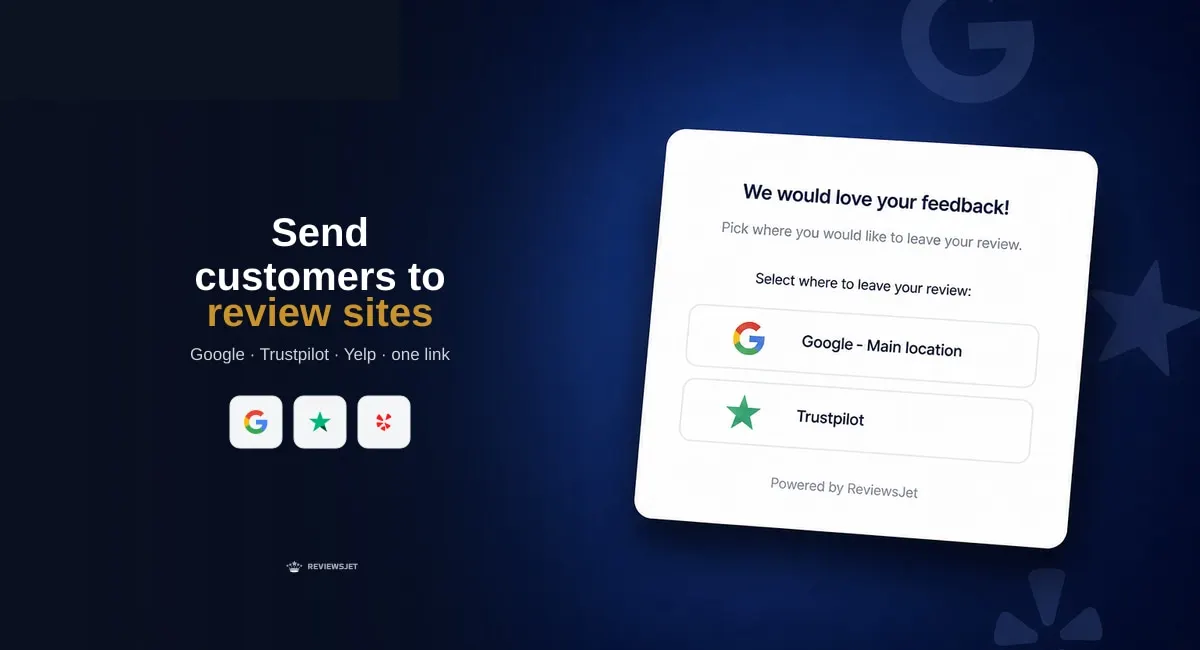
Send customers to Google, Trustpilot, or Yelp with one ReviewsJet form link. Import those reviews and show them on your site.